cse15l-lab-reports
How to Log into a Course-Specific Account
Step One : Installing VScode
-
The first step we need to do before logging into a course-specific account is to install VScode. Click here to install VScode!
-
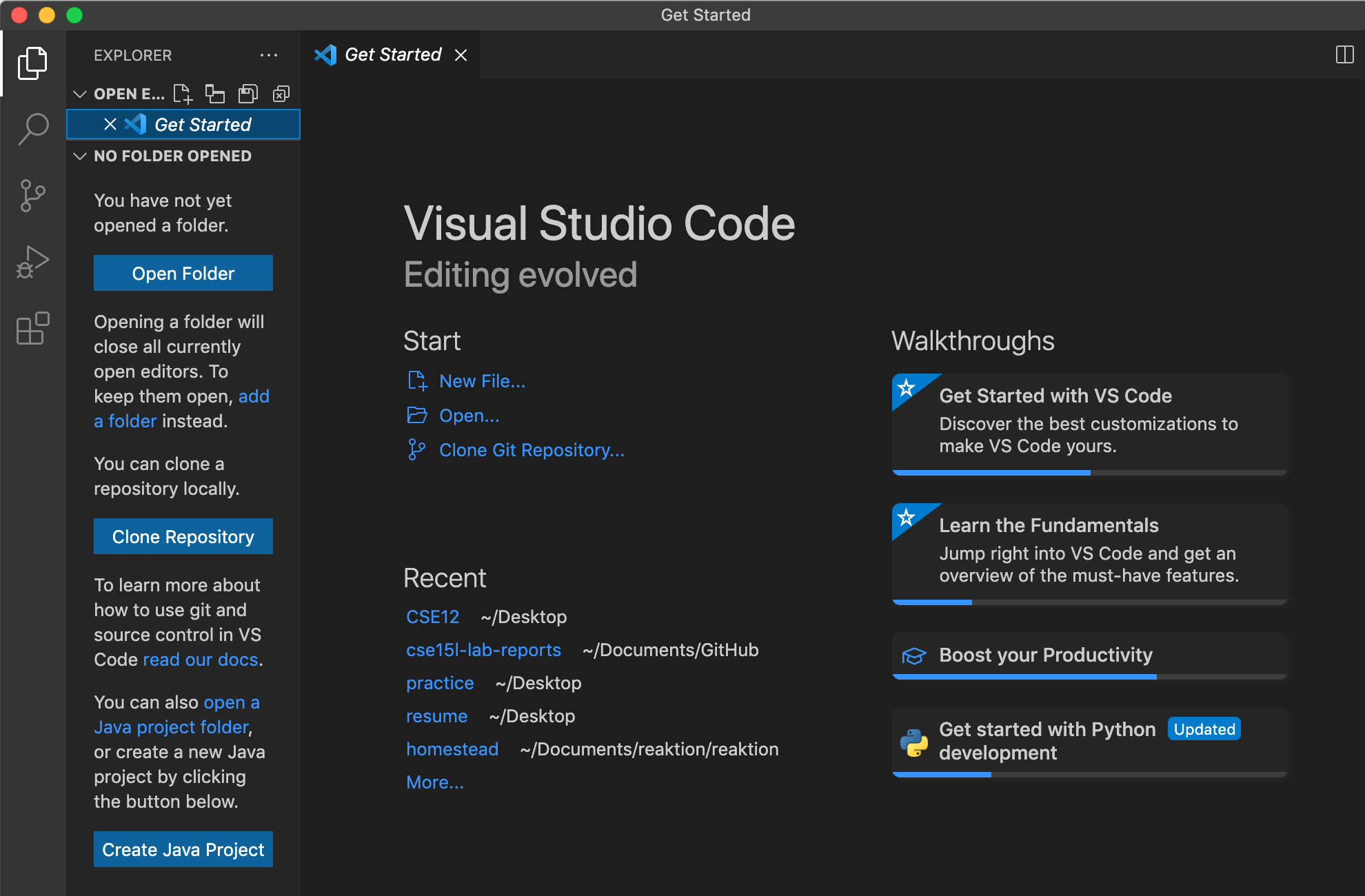
Once you install and run VScode, your environment should look similar to this:
Step Two : Remotely Connecting
-
We must then look up your source-specific account for CSE15L. Click Here!
-
Once you do your account Lookup, you should be able to find your own course-specific account. It should look something like
cs15lwi22zz@ieng6.ucsd.edubut with the zz replaced with your own letters. -
Then type the following into the terminal:
ssh cs15lwi22zz@ieng6.ucsd.edu. Next type in yes and it should give you a prompt to enter your password. -
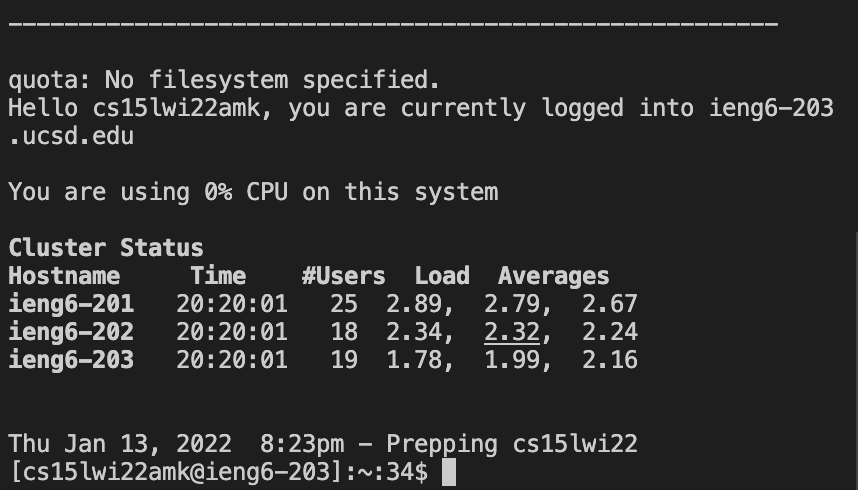
Once you are connected, it should look like this:
Step Three : Trying Some Commands
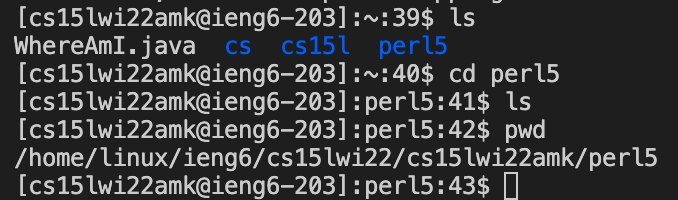
- Try running some commands such as,
cd,ls,ls -a,mkdir,pwd. - You could try this command for example,
Step Four : Moving Files with scp
- One way to copy files from your computer to a romote computer is by using the command
scp. - We will always run the command on your computer (the client). First create a file
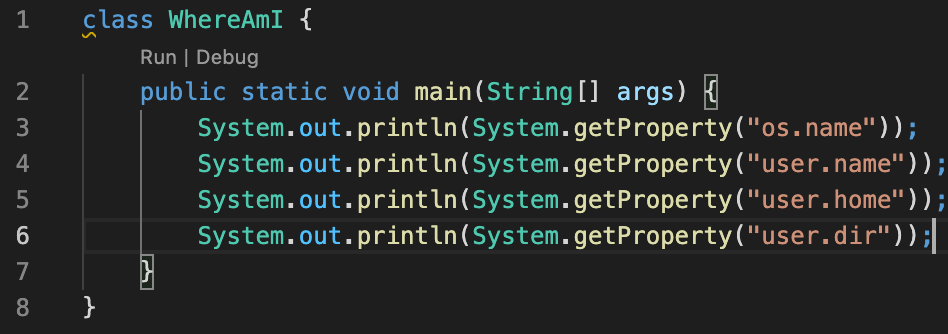
WhereAmI.javaand put the following content into the file:
- Then, log into your
ieng6with yoursshand run the file usingjavacandjava.
Step Five : Setting an SSH Key
- To avoid the trouble of having to type in your password everytime you log into your ieng6 using your ssh key, we can create whats called a ssh-keygen. Run
ssh-keygenon your computer and it should look like this: 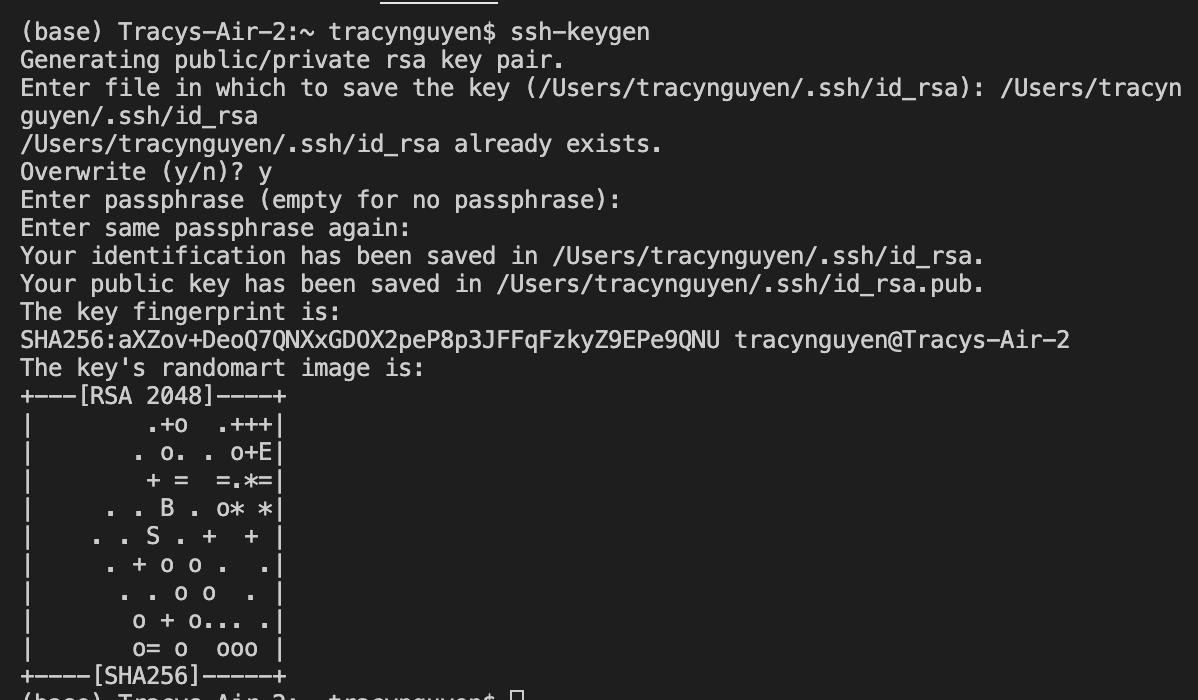
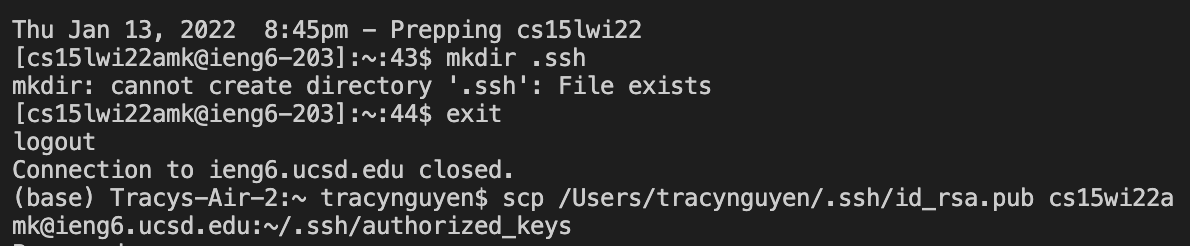
- This created two files - one with your private key and one with your public key. Therefore, we now need to copy the public key to the
.ssh directoryby doing the following steps on the server:
Step Six : Optimizing Remote Running
- Final step! To make remote running more efficient, you can use semicolons to run multiple commands on the same line and save multiple “enter” keystrokes.

- In the example above, I was able to save two “enter” keystrokes.
- You could use the up arrow to retrieve the last command that was runß.